
Why Snaptroid Doesn't Have a Native PC App
Snaptroid is built as an Android application, so it needs an Android environment to run in. On a phone, that environment is built in. On a Windows PC, an Android emulator provides that same environment, which is why the PC route always goes through one rather than a direct .exe install.
If setting up an emulator sounds like more effort than you want, the Snaptroid browser version skips installation entirely, worth trying first if convenience matters more than the full feature set.
Benefits of Using Snaptroid on a Bigger Screen
- Easier to read story text and view media in detail
- More comfortable for longer browsing sessions than a phone screen
- Simpler to organize saved media alongside other files on your PC
- Keyboard and mouse input for faster username searches
What You Need Before Installing
- A Windows PC with a reasonably modern processor and at least 4GB of RAM
- A stable internet connection for both the emulator and the app download
- The current Snaptroid APK file, matched to the right version for your setup
How to Install Snaptroid on PC
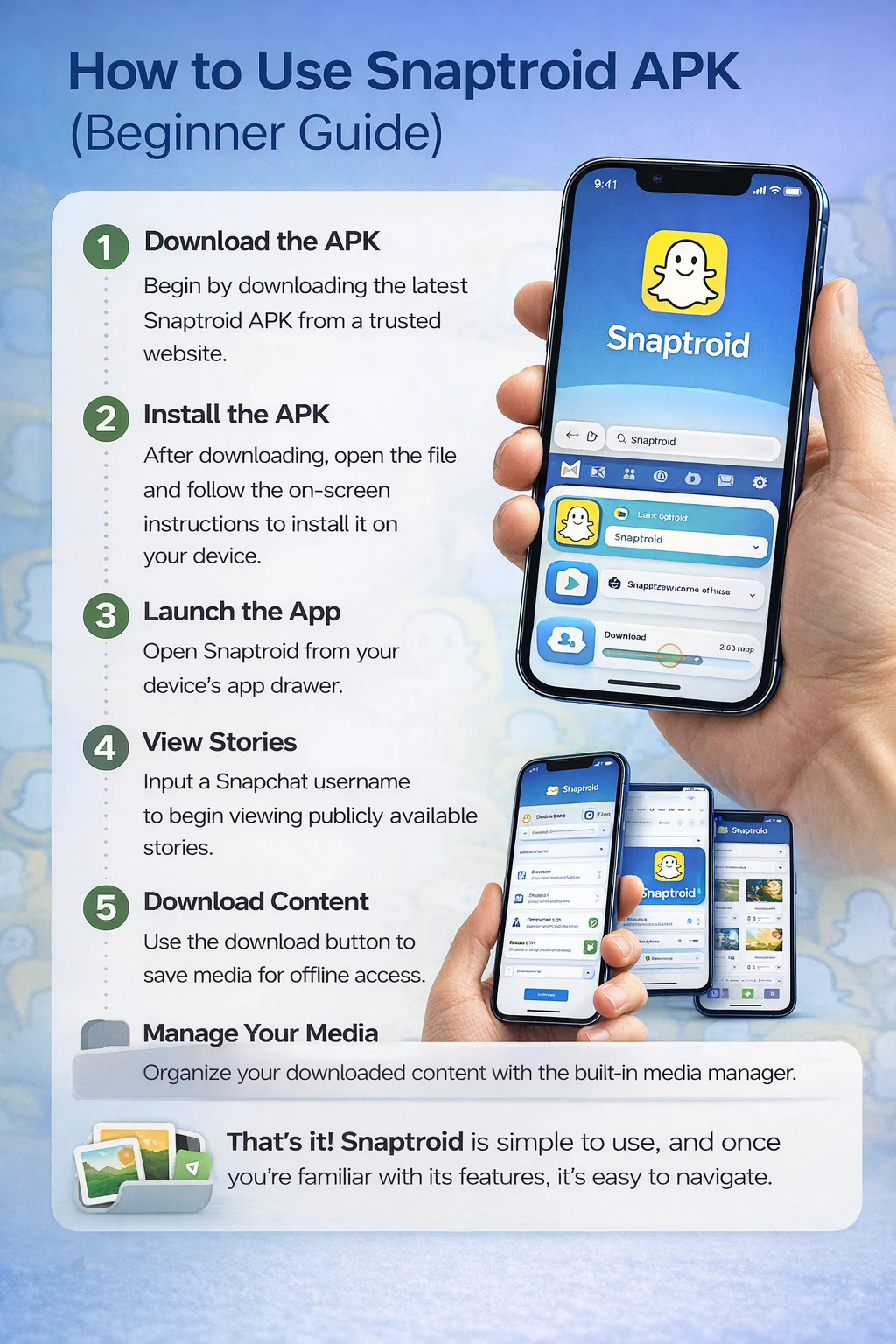
- Install an Android emulator such as BlueStacks or LDPlayer.
- Launch the emulator and let it finish its first-time setup.
- Download the Snaptroid APK file to your PC.
- Drag the APK file into the emulator window, or use its built-in "install APK" option.
- Open Snaptroid from the emulator's app drawer, the same way you would on a phone.
System Requirements for the Emulator
- Windows 8 or newer (Windows 10 or 11 recommended)
- At least 4GB of RAM, 8GB or more for smoother multitasking
- A few gigabytes of free storage for the emulator itself, on top of Snaptroid's small footprint
- Updated graphics drivers, since most emulators rely on hardware acceleration
Using Snaptroid on Mac
The same emulator approach works on macOS. BlueStacks offers a Mac-compatible build, and the install flow is nearly identical: install the emulator, drag in the APK, open Snaptroid from the emulator's app drawer.
Choosing an Emulator
BlueStacks
The more beginner-friendly option, with a simpler setup process and wider general compatibility across different Windows configurations.
LDPlayer
Often the lighter option on lower-spec machines, and popular with users who run several Android apps side by side.
Either works fine for Snaptroid specifically, so pick based on what else you plan to run alongside it.
Performance Tips
- Allocate at least 2 to 4GB of RAM to the emulator in its settings if your PC can spare it
- Close other heavy background applications while the emulator is running
- Keep the emulator itself updated, not just the apps installed inside it
- Use a wired or strong Wi-Fi connection for smoother story loading
Using Snaptroid Once It's Installed
- Open Snaptroid from the emulator's home screen.
- Search a public Snapchat username using your keyboard.
- Browse and save stories the same way you would on mobile.
- Access saved media through the emulator's shared folder or built-in file manager.
Troubleshooting PC-Specific Issues
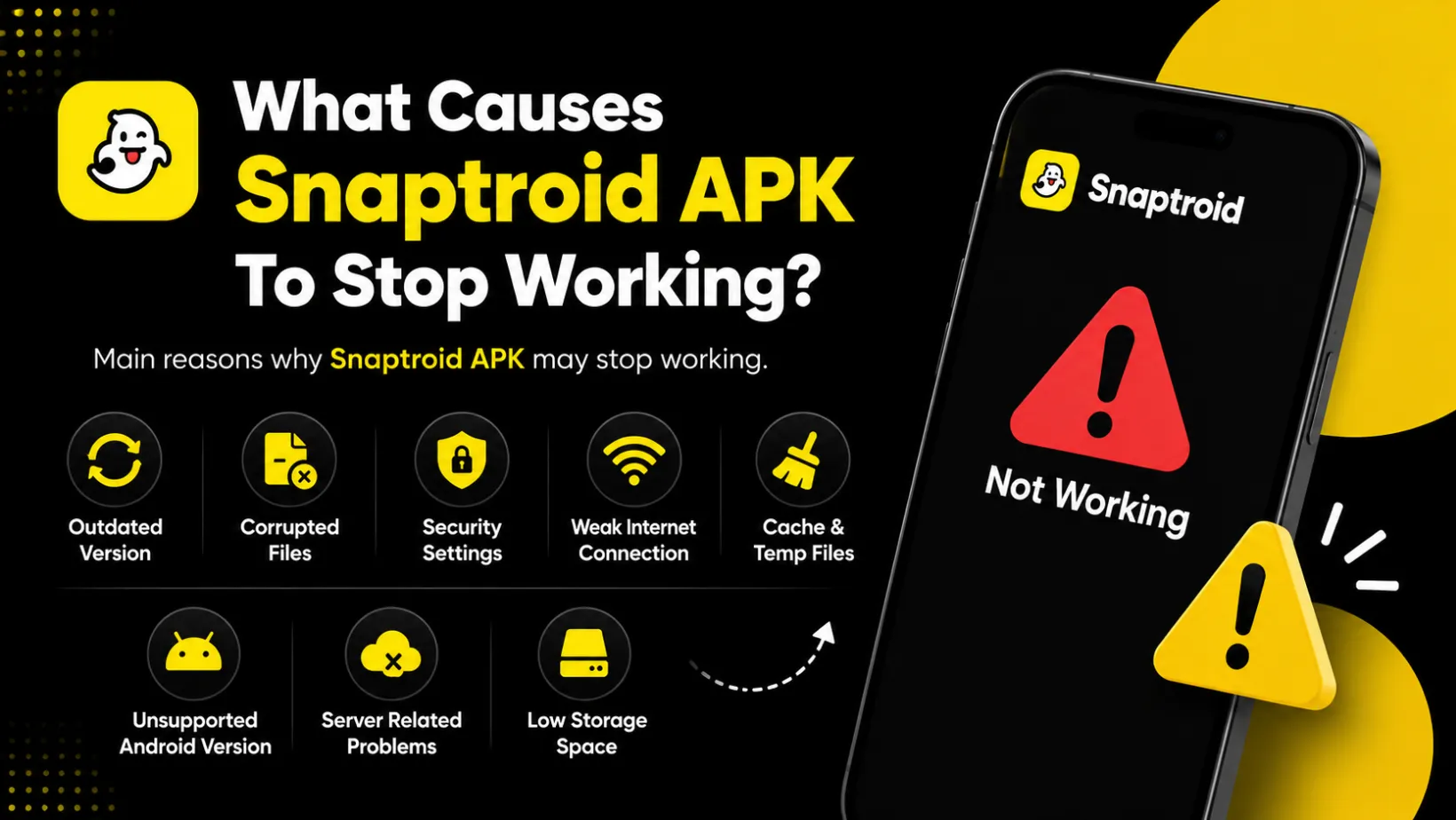
If Snaptroid runs slowly or fails to load stories on PC, the emulator's resource allocation is the most common culprit, not the app itself, though broader causes across platforms are covered in our Snaptroid fix guide.
Pros and Cons
Pros
- Bigger screen for browsing and viewing media
- Works with widely available free emulators
- Same features as the mobile app
- Easier file management for saved content
Cons
- Requires installing and maintaining an emulator
- Slightly more setup than a native app would need
- Performance depends on your PC meeting the emulator's requirements
Frequently Asked Questions
Is there a native Windows version of Snaptroid?
No. It is an Android app, so running it on PC always goes through an Android emulator rather than a direct .exe install.
Which emulator is best for Snaptroid?
BlueStacks and LDPlayer both work well. BlueStacks is generally easier for beginners, while LDPlayer tends to run lighter on lower-spec machines.
Do I need a powerful PC to run Snaptroid through an emulator?
No. Snaptroid itself is lightweight. As long as your PC meets the emulator's own minimum requirements, typically 4GB of RAM and a reasonably modern processor, performance should be fine.
Can I use Snaptroid on Mac?
The same emulator approach works on Mac, using a Mac-compatible build of BlueStacks or a similar Android emulator.
Final Thoughts
Running Snaptroid on PC is a one-time setup cost, install an emulator, drop in the APK, and after that it behaves exactly like the mobile version covered in our hands-on review, just on a bigger screen.